
For refs · 0:40

Got a Ref link? Join your league in 30 seconds.

Your league organizer sent you a ReadyRef Ref link. Here’s what to do with it, start to finish, on the phone you’ll ref with.

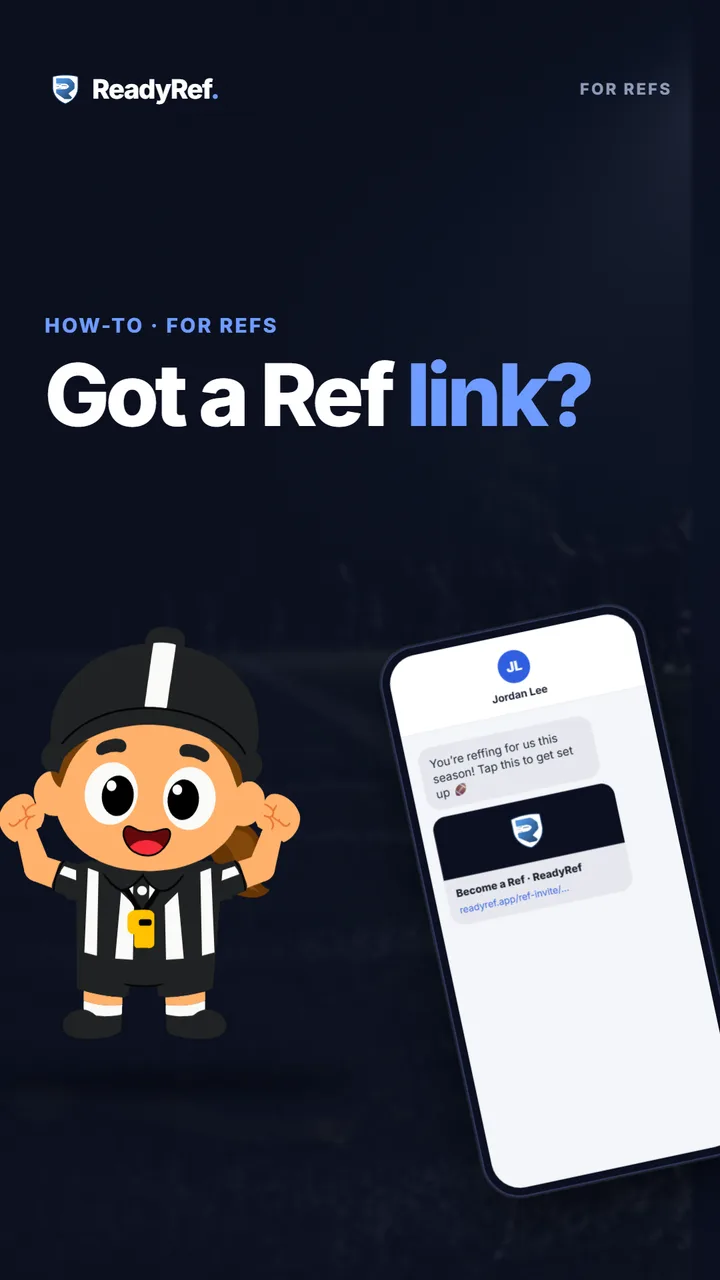
Video poster: Got a Ref link? A cartoon referee beside a phone showing a text message with a ReadyRef Ref link.

Plays from YouTube when you press play.

The steps

From link to ref in four taps

  1. 0:03Tap the link — it opens the Android app or your browser
  2. 0:08Sign in with Google or your email
  3. 0:11Check who invited you, tap Join league as Ref
  4. 0:15Ref tab → Ref Scheduled Game
  5. 0:21Got a six-digit code? Ref tab → Add from Code
Read the transcript

Your league sent you a Ref link. Here’s what to do with it.

Tap the link. It opens ReadyRef, in the Android app or right in your browser. Sign in with Google or your email. Check who invited you, then tap Join league as Ref.

That’s it. Now open the Ref tab and tap Ref Scheduled Game to score any game in your league.

Got a six-digit code instead? On the Ref tab, tap Add from Code and type it in.

Each link works only once, so make sure you use that link for yourself. Now that you’re in, it’s time to ref your first game.

Good to know

  • One link, one ref. A Ref link works once, for the person it was made for. If a friend wants to ref too, ask your organizer for a link of their own.
  • Links expire after 14 days. If yours has run out, your organizer can send a fresh one.
  • On an iPhone? The link opens the full app in Safari at readyref.app/app. There’s nothing to install.
  • Already a Ref in that league? The app tells you, and accepting changes nothing.
  • It’s league-wide. Once you’ve joined, you can open and score any scheduled game in that league, not just one.

Next: ref your first game

The next how-to walks through the clock, the score, the downs, Undo and submitting the result, in one minute.

All how-to videos · How to referee flag football